Posts Tagged ‘audio’

Trim File Feature

Thursday, January 17th, 2013

We have now enabled file trimming on Scribie.com. If you have a audio file and need only parts of it transcribed then you can trim the audio file and remove the unwanted parts before placing the order, thus saving your costs.

Trim File

The Trim File option is available from both, the Uploaded Files and Invoice pages (named as Time Range, last option). It brings up a dialog which prompts you to enter the start and end time stamp. The audio file is trimmed to contain only the portion between start and end. A new file is created and placed in your files page. The original file is kept intact and can be use to create further trimmed files. The trimmed file can then be ordered.

Try it out today. As usual, feedback/comments are most welcome.

New Transcript Order Options

Tuesday, July 5th, 2011

We have recently added two new options which can be specified when ordering Transcripts. A screenshot is below.

The first one is Flexible Delivery. If Flexible Delivery is enabled then the we will deliver the transcript anytime within a week as per our schedule. In the worst case the delivery will be done after 1 week. But it can also happen before that if we find a slot for it. We offer a 10% discount for Flexible Delivery orders.

The second option is Additional Proofreading. In our transcription process we do one mandatory round of proofreading. For Additional Proofreading orders we do a second round of proofreading as well. This is useful for files which are difficult to transcribe, i.e. files which poor audio quality where the speakers can’t be heard clearly or which have noisy environment, or files which have non-native speakers whose diction is hard to comprehend. We charge $0.50 per minute extra for this option.

In addition to these options we have also do more quality checking than before. We also pay more attention to blanks which are leftover after proofreading and try to correct them as much as possible.

We’d like to thank you for using our service and your valuable feedback.

How to Transcribe Audio File

Wednesday, May 11th, 2011

So, you have an audio file which needs to be transcribed to text and have no idea how to go about it. Here’s how to do it.

The first thing you would need is ExpressScribe. It’s a free tool which enables quickly to start/stop/pause playback with hotkeys (or foot pedals) so that your hands are freed up for typing. To setup the hotkeys go to Control -> Hotkeys setup and enter your preferred keys. We suggest the following.

  • F7 -> rewind
  • F8 -> forward
  • F9 -> play
  • F10 -> stop

The useful thing is that these hotkeys are global. So you can control ExpressScribe even if it’s not the active application, which means you can type, play, stop, rewind, and forward without leaving your text editor. Very useful. Load up a test file and play around with the setup.

The second thing you would need is a good headset. Transcription is time consuming and when you wear it for long periods of time you may start feeling a bit of pain around your ears. Any headset with some padding around the earpiece will do. Do not play it on your speakers because then you will make lots of mistakes.

The third thing you would need is a text editor. You can use Word, OpenOffice.Org or any other editor of your choice. At a minimum it should have word completion and spelling auto-correction. While typing you’ll find that you misspell lot of words and to correct them you’ll have to stop and go back constantly. Auto-correction will save you time. Similarly auto-completion will save you typing, at least for common words.

Once everything is set up, you’re good to go. Bring up your editor, play the file, pause and type whatever you understood. Play-pause-type. Rinse and repeat till the file is complete. One pro-tip is try not to rewind too much. Rewind as few times as possible. Better still, instead of rewinding just mark the inaudible portion with a blank or make a guess, and after you’re finished go back and review the file. You’ll finish the file faster this way.

On an average it takes around 4 to 6 hours to finish 1 hour of audio. It varies by your typing speed,  the audio file quality and/or the diction of the speaker. Difficult files take longer. Plus, you’ll notice sometimes you cannot catch a few words, no matter how many times you rewind and play it back. Ask for a second opinion if you can.

As you would have guessed by now, it’s a painstaking task. It takes a lot of time and effort. That is exactly why we have the Audio Transcription Service. We do all the work for you and deliver a high quality transcript after 1 business day. For $75 you can get an hour of audio transcribed. We have a rigorous process and have transcribed over thousands of hours of audio to date. Try it out and check out the results for yourself.

On the other hand, if you like transcribing then check out our Freelance Transcription Program. You can work as a homebased freelance transcriber and get paid on an hourly basis for the work done.

Hiring a Transcriber: audio hour vs man hours

Monday, May 2nd, 2011

If you’re looking to sell our your own e-book then have a look at Jared’s post at Startups Open Sourced. He’s had great success with it and has written up a detailed how-to of the steps involved. One of his tips is, get your interviews recorded and hire a transcriber to transcribe everything which you can work off.

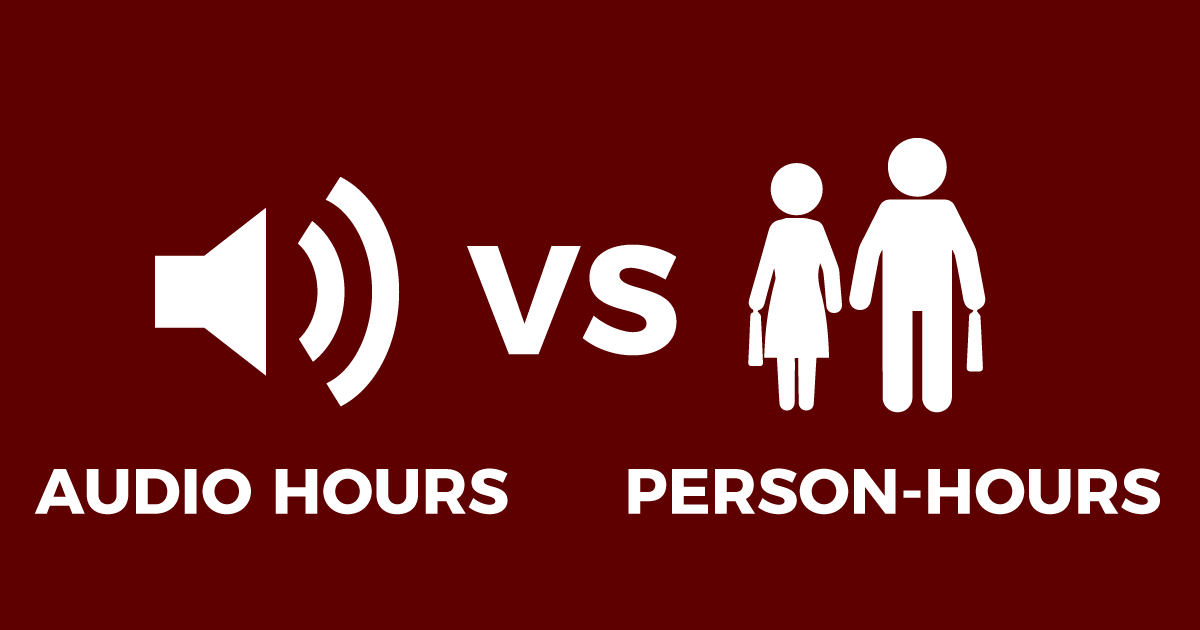
One of the things to remember while hiring a transcriptionist keep in mind the difference between audio hour and man hours, which Jared mentions in his post. An hour of audio can take anywhere from 4 to 6 hours to transcribe. If you’re paying by the hour then your cost will basically be multiplied by that factor. On the other hand if you’re paying by the audio hour, then the amount of effort spend does not matter. You’ll pay for the amount of audio transcribed and not time taken for it to transcribe.

On Scribie.com we charge always by the audio hour. You don’t have to worry about the amount of actual time taken. Even if the audio is hard to transcribe and takes a more effort, you wont have to pay extra. At the end of the day you’ll still get a high quality transcript of your audio file.

CallGraph.Biz is now Scribie.com

Tuesday, March 15th, 2011

We have moved to a new domain; Scribie.com. All the accounts data from CallGraph.Biz has been migrated to Scribie.com. If you had an account on CallGraph.Biz then you can now login to your Scribie.com account and check.

https://scribie.com/account/login

With Scribie.com the focus is more on our audio transcription service. We have been working on our outsourcing platform for a long time and we are very confident about it. It’s the best audio transcription service you’ll find out there.

We have also discontinued the online backup and Skype Group Collaboration services. We are not accepting new accounts for those. If you had been using those services then your files will still be available and you can still keep uploading. But, we are not planning to add any new features or maintain it.

We still offer the CallGraph Skype Recorder for free and plan to continue working on it.

Introducing Transcript Types

Wednesday, September 8th, 2010

We now offer two types of transcript: Draft and Proofread. If you plan to do a comprehensive review of the transcript then you can choose the Draft Transcript Type while ordering. The Draft Transcript is not time coded and the speakers are not tracked in it. It contains just the text of the audio file with each speaker’s diction paragraphed neatly.The rate for the Draft Transcript is $0.60 per minute. Therefore for a 1 hour file it will cost $36.

The Proofread Transcript on the other hand requires minimal or no editing on your behalf. This type of transcript is time coded and speakers are tracked with initials. The blanks are marked with a time-stamp to make it easy to locate it in the audio file and correct it. We also do a complete review. This includes researching any terms that might occur in the audio and finding out the correct usage, correcting mistakes,  filling in blanks, etc. We also ensure that the quality is as high as possible. The rate for the Proofread Transcript is $0.75 per minute of recorded audio. Therefore for a 1 hour file it will cost $45.

This gives you a bit more flexibility while ordering the transcript. The most time consuming part while transcribing an audio is typing; thats the heavy lifting part. In the Draft Transcript we do the heavy lifting for you and you can then review it and modify it as per your need.

We now offer only Proofread transcripts at $0.99 per minute of audio.

Transcription Service: Faster Deliveries, Video Files and More

Tuesday, February 23rd, 2010

Deliveries: The delivery slabs are now 3 days, 1 day and 12 hours instead of 7 days, 3 days and 1 day respectively. The rates remain the same.

Video Files: You can upload video files and have them transcribed. We support wmv, avi, flv, mpg, mp4 and mov files. The files are converted to mp3′s and then you can order transcripts.

URL Upload: Files can be uploaded by URL’s. Eg. YouTube links or podcast links.

Partial Transcripts: After ordering the transcript you can view partial transcripts. The option is in the actions menu in the transcripts page.

Order Cancellation: After the transcript order has been placed you can cancel the order and we’ll refund the applicable amount to you. The applicable amount is calculated from the transcript progress.

Tools: We have also added a slew of tools to modify/clean up the transcripts after they have delivered. The timestamps, speaker initials, blanks and all meta information can be removed. A simple find a replace tools has also been added. These options are available from the actions menu in the transcripts page. The transcript text can also be copied directly to the clipboard from as opposed to download the files.

Thank you for using Call Graph! Comments/feedback are most welcome.