How to Add and Use Credits on Scribie
Scribie credits make it easy to prepay for your transcription orders. Instead of paying separately for every order, you can add funds to your Scribie workspace and use those credits for future invoices. Adding credits is now more convenient. You can access your credit balance directly from the File Uploads page, add the amount you […]
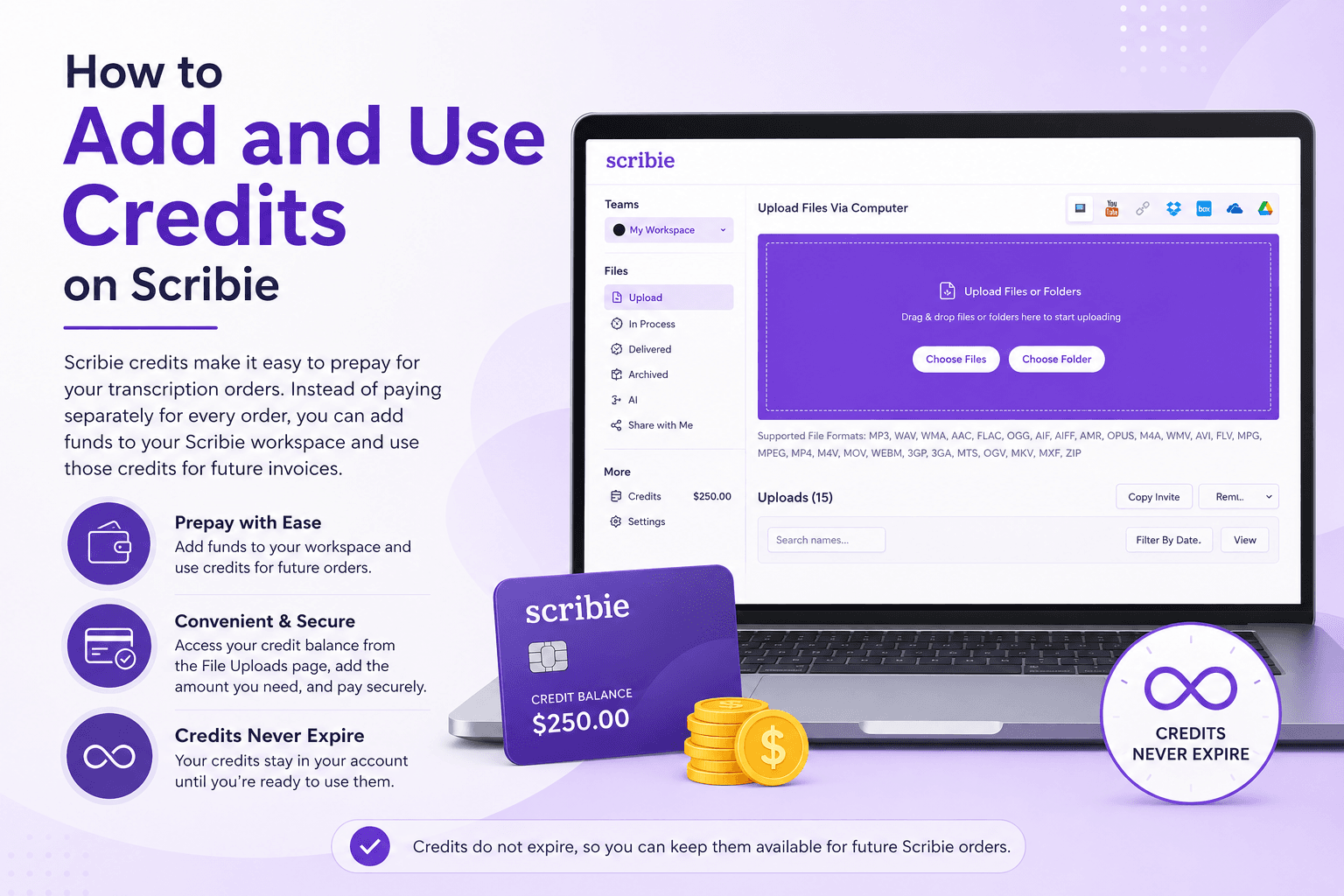
Scribie credits make it easy to prepay for your transcription orders. Instead of paying separately for every order, you can add funds to your Scribie workspace and use those credits for future invoices.
Adding credits is now more convenient. You can access your credit balance directly from the File Uploads page, add the amount you need, select your payment method, and have the credits added to your workspace after payment.
Credits do not expire, so you can keep them available for future Scribie orders.
1 How to Add Credits to Your Scribie Account
Adding credits to your account is easy and secure. Here is an overview of the process.
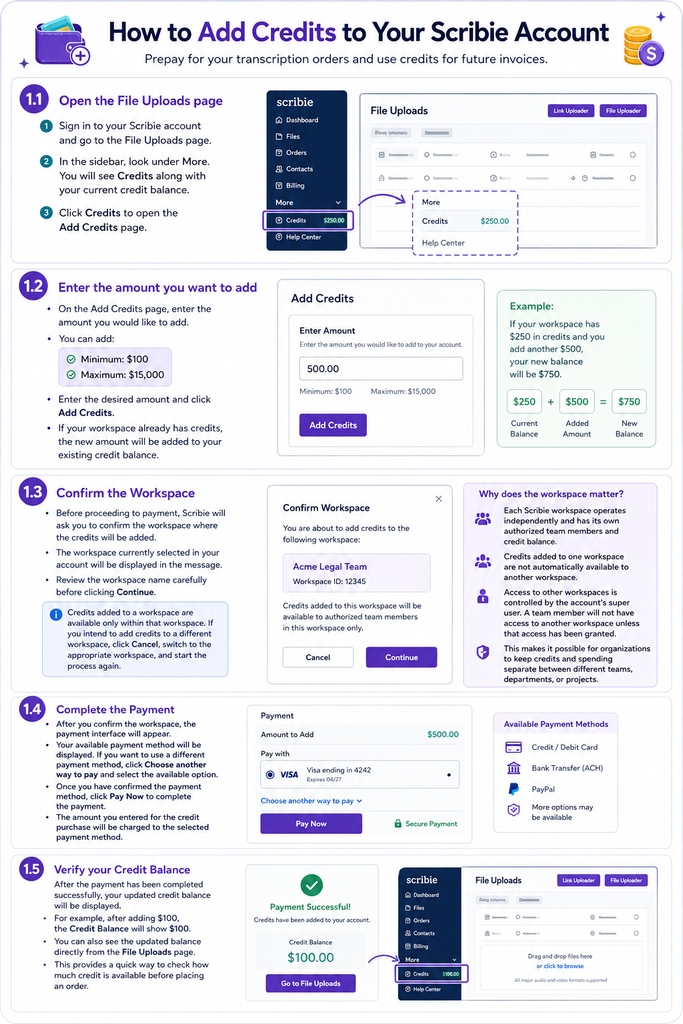
The step-by-step process is detailed in the subsequent sections.
1.1 Open the File Uploads page
Sign in to your Scribie account and go to the File Uploads page.
In the sidebar, look under More. You will see Credits along with your current credit balance.
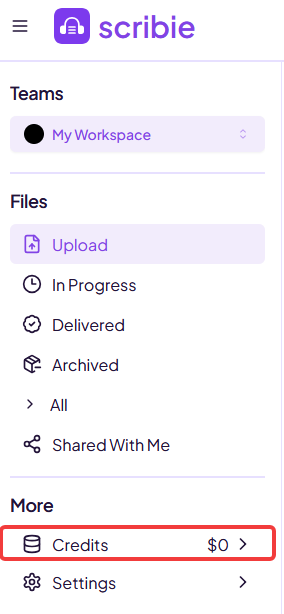
Click Credits to open the Add Credits page.
1.2 Enter the amount you want to add
On the Add Credits page, you can enter the amount you would like to add to your account.
You can add:
- Minimum: $100
- Maximum: $15,000
Enter the desired amount and click Add Credits.
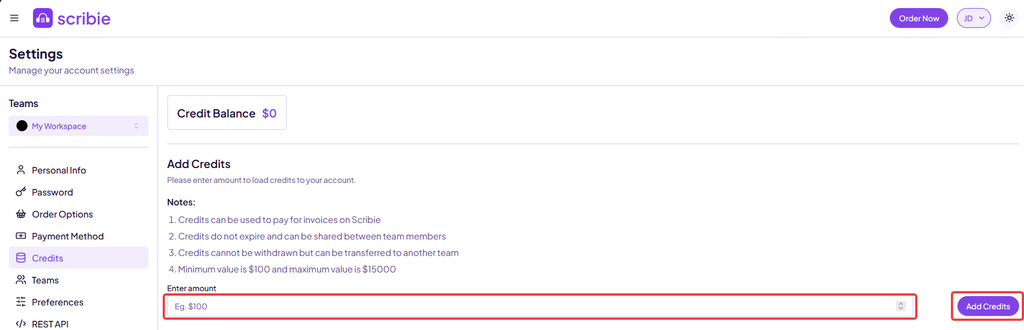
If your workspace already has credits, the new amount will be added to your existing credit balance.
For example, if your workspace has $250 in credits and you add another $500, your new balance will be $750.
1.3 Confirm the Workspace
Before proceeding to payment, Scribie will ask you to confirm the workspace where the credits will be added.
The workspace currently selected in your account will be displayed in the confirmation message.
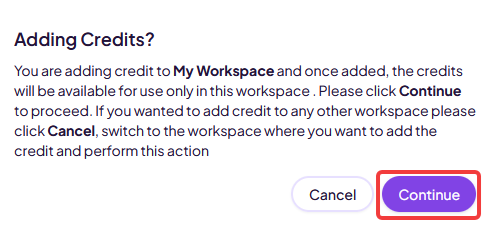
Review the workspace name carefully before clicking Continue.
Credits added to a workspace are available only within that workspace. If you intend to add credits to a different workspace, click Cancel, switch to the appropriate workspace, and start the process again.
Why does the workspace matter?
Each Scribie workspace operates independently and has its own authorized team members and credit balance.
Credits added to one workspace are not automatically available to another workspace. Team members who are authorized to place orders within that workspace can use the credits available there.
Access to other workspaces is controlled by the account’s super user. A team member will not have access to another workspace unless that access has been granted.
This makes it possible for organizations to keep credits and spending separate between different teams, departments, or projects.
1.4 Complete the Payment
After you confirm the workspace, the payment interface will appear.
Your available payment method will be displayed. If you want to use a different payment method, click Choose another way to pay and select the available option.
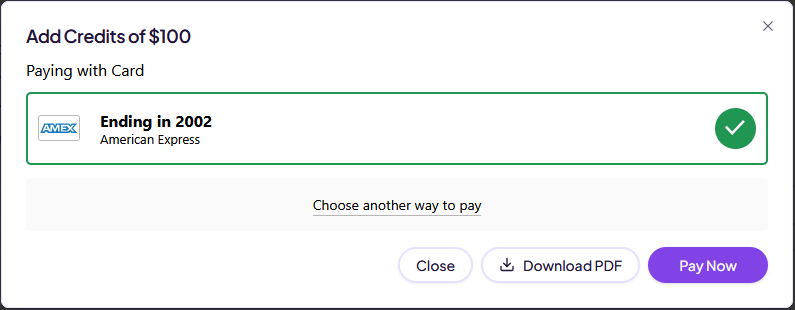
Once you have confirmed the payment method, click Pay Now to complete the payment.
The amount you entered for the credit purchase will be charged to the selected payment method.
1.5 Verify your Credit Balance
After the payment has been completed successfully, your updated credit balance will be displayed.
For example, after adding $100, the Credit Balance will show $100.
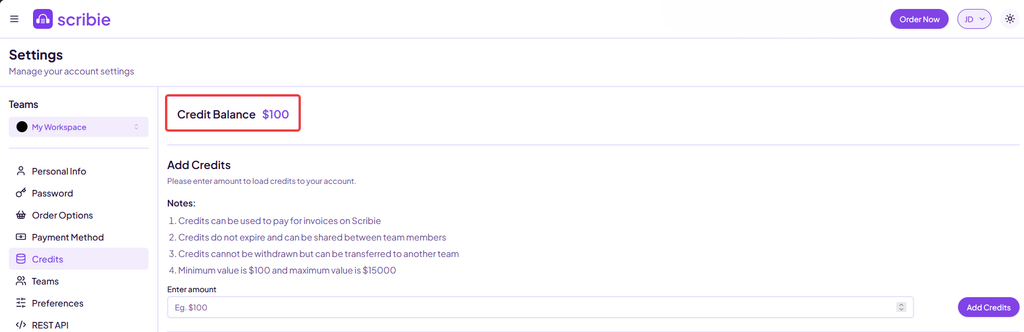
You can also see the updated balance directly from the File Uploads page.
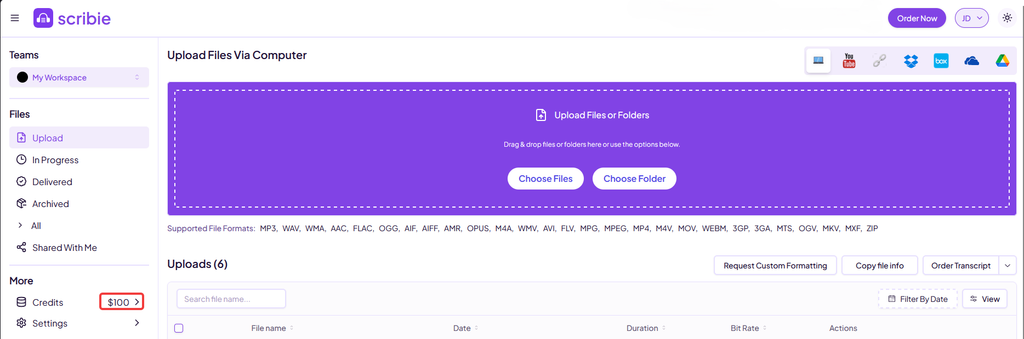
This provides a quick way to check how much credit is available before placing an order.
2 How Workspace Credits Work
Credits belong to the workspace where they are added.
Each workspace has:
- Its own credit balance
- Its own authorized team members
- Its own orders and activity
Credits added by an authorized user can be used by other team members who are also authorized to place orders within that same workspace.
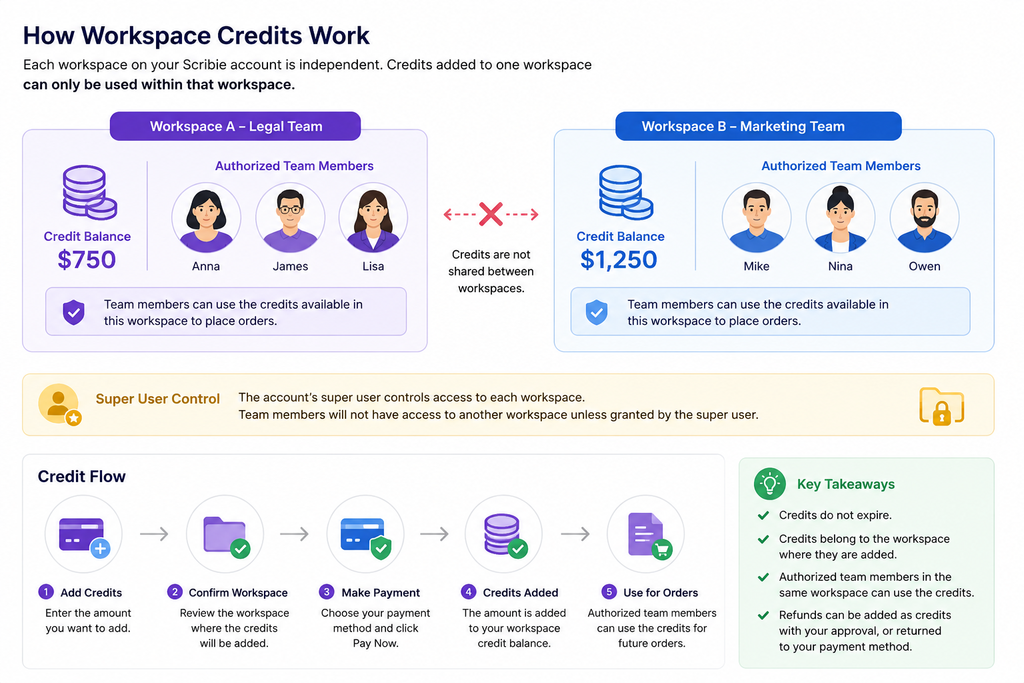
For example, if a team member adds $1,000 in credits to a workspace, another authorized team member can use those credits for an order placed through that workspace. The person who originally added the credits does not have to be the person who places every order.
However, the credits cannot simply be used by members of another workspace. Access between workspaces must be granted by the account’s super user.
2.1 What happens if you already have credits?
You do not need to use your existing credits before adding more.
Any new credits you purchase are added to the existing balance.
For example:
Existing balance: $500
New credits added: $1,000
New balance: $1,500
This allows you to maintain a credit balance that can be used for future orders.
2.2 Can credits expire?
No. Scribie credits do not expire, so you can keep them available until you need them for future Scribie services.
2.3 Can a refund be added as credits?
Yes. Once a refund is processed, you may choose to have the refunded amount added as credits to your Scribie workspace. You can set this in the Credits section on the Settings page.
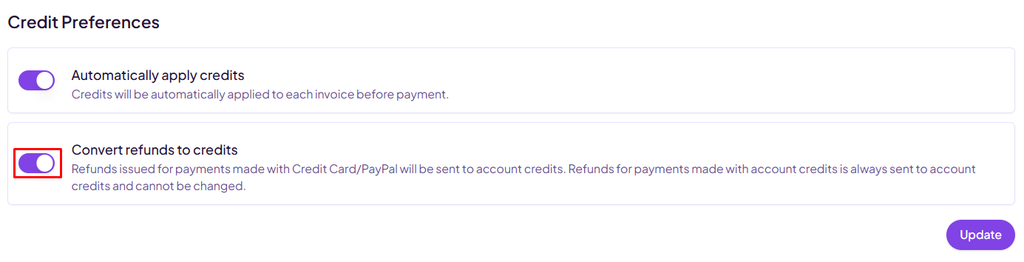
This can be convenient if you plan to continue using Scribie because the refunded amount becomes available for future orders.
However, a refund does not have to be converted into credits. If you prefer to receive the refund through your payment method, let us know, and we can process it accordingly.
3 A Convenient Way to Pay for Future Orders
Scribie credits provide a simple way to maintain funds for your future transcription needs. You can add credits directly from the File Uploads page, choose the amount you need, confirm the workspace, and complete your payment.
Once the payment is successful, your updated balance is immediately visible in your account, making it easy to keep track of the funds available for your workspace.
If you have any questions or concerns, please feel free to contact us!
Comments (0)
No comments yet. Be the first to share your thoughts!